

FROM IDEA TO CREATION01
Turn an idea into a detailed image
Start with your subject, composition, materials and lighting. Shape a visual direction in words, then refine individual details as you explore different versions.
Create detailed images, refine visual ideas and edit your references with leading image models.
Create detailed images, refine visual ideas and edit your references with leading image models. Keep your prompt, references and output settings together in one workspace, with task progress and reusable creation recipes close at hand.
From a first idea to the finishing details, keep the creative process in your hands.
Start with your subject, composition, materials and lighting. Shape a visual direction in words, then refine individual details as you explore different versions.
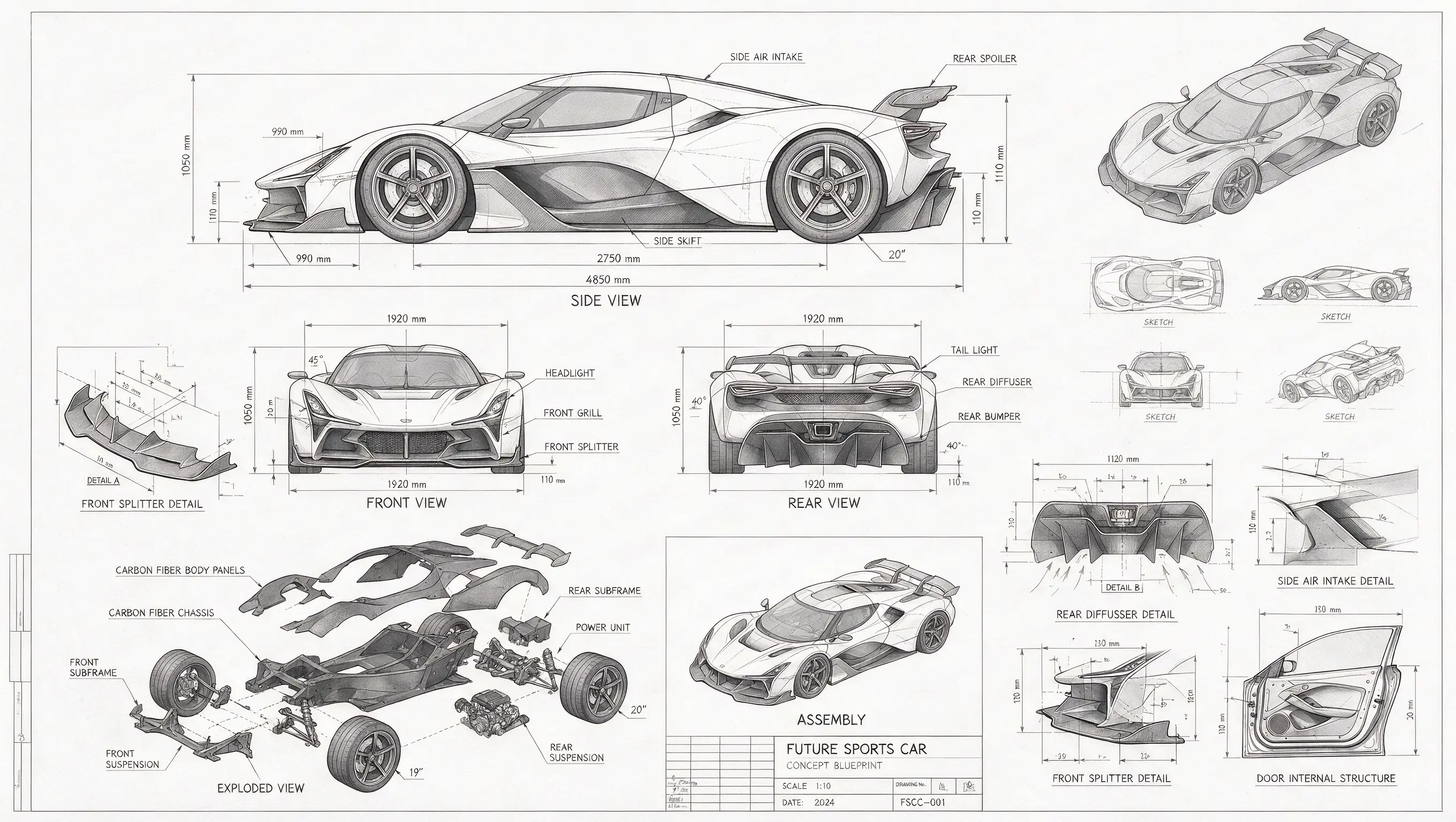
Add clear source material and describe the subject, appearance or composition to preserve. The current GPT Image 2 workflow accepts up to 16 reference files; available input controls appear in the composer.
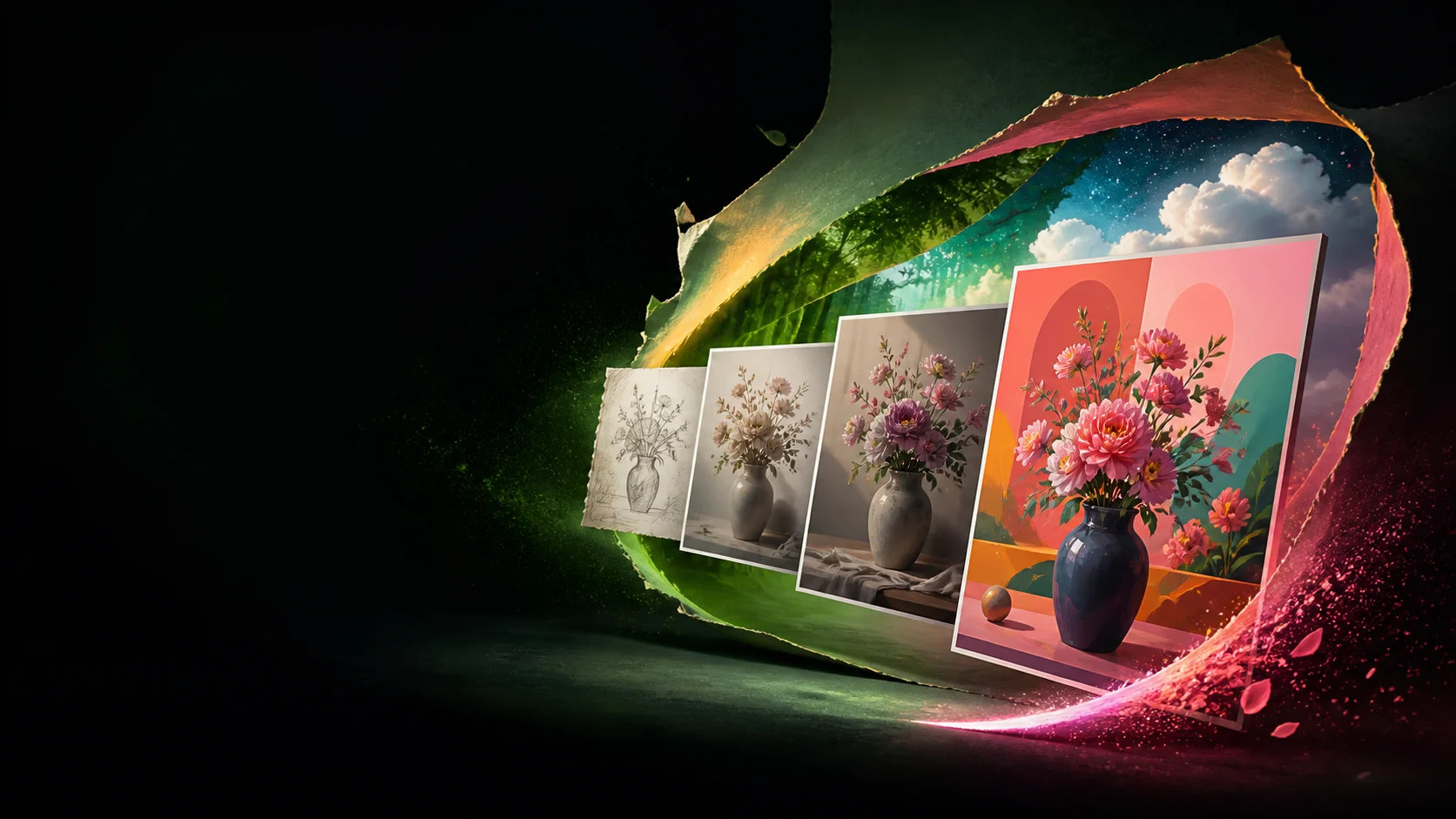
Choose from 1:1, 16:9, 9:16 and other supported ratios, then select from the model’s available output settings. Review the settings before generating and keep your finished work in Assets.
Explore a starting point, open its prompt and take the idea in your own direction.
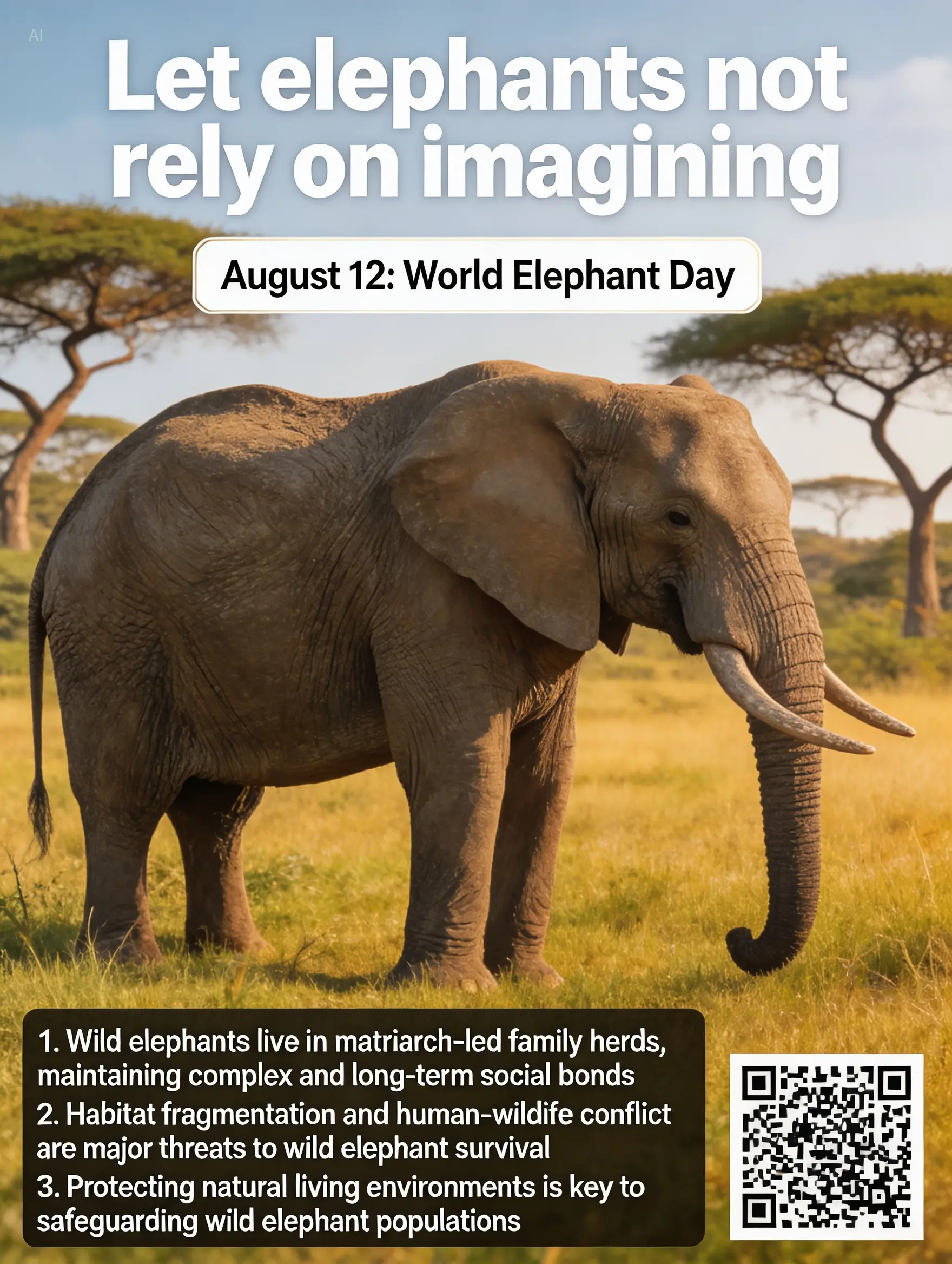
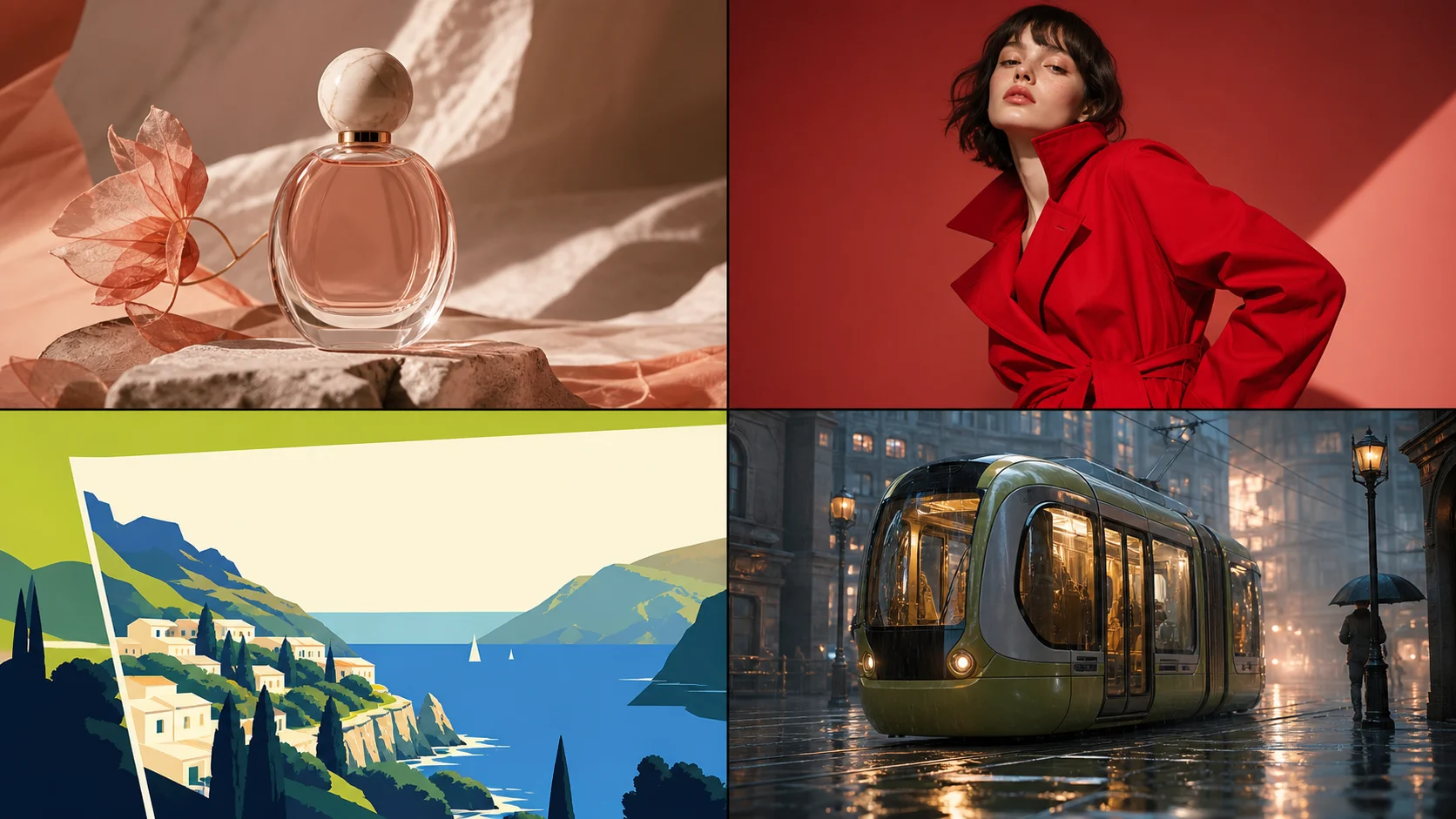
These are the current workflow settings. Check the composer for available options and the final quote before submitting.
| Model | GPT Image 2 |
|---|---|
| Output | AI image |
| Aspect ratios | 1:1 · 16:9 · 9:16 · 4:3 · 3:4 · 3:2 · 2:3 |
| Resolutions | 1K · 2K · 4K |
| Reference inputs | Up to 16 files |
| Generation cost | Review the current credit quote before submitting |
Set the subject, environment and light. Add camera direction or composition, and attach references when you need them.
Review the model, aspect ratio, resolution and available options. Check the credit quote before starting generation.
Preview the result in your workspace. Download a finished version or reuse its recipe to develop the next one.
GPT Image 2 turns prompts and supported references into images. Use the composer to explore composition, styles and image details with the controls available in this workflow.
Write a prompt in the composer above, attach any references, and choose your output settings. Review the credit quote, then submit and follow the task in your workspace.
This workflow offers 1K, 2K, 4K resolution options and 1:1, 16:9, 9:16, 4:3, 3:4, 3:2, 2:3 aspect ratios. The composer shows the available settings for the selected model.
Yes. This model’s current workflow supports up to 16 reference files. Clear source material and a precise description of the details to preserve help guide your result.
Your workspace displays the task status. When the generation service confirms a failed task, the system handles the associated credit return. You can then revise the settings and submit again.
Open Assets after signing in to preview and download completed work. Reuse a creation to restore its generation recipe and continue developing your idea.
Start with a prompt, choose your settings, and make something that is yours.